

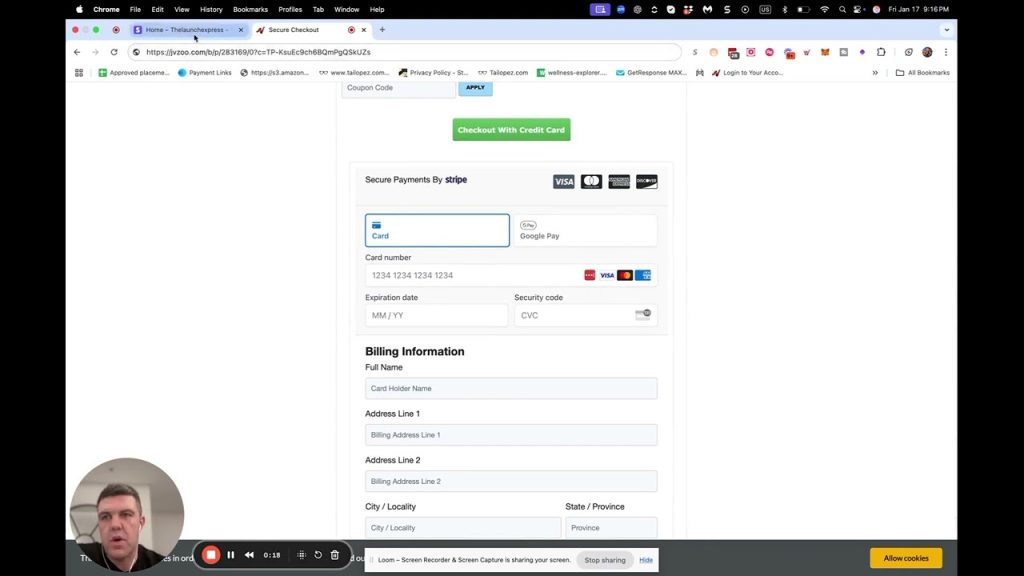
Apple Pay and Google Pay on a JVZoo Stripe checkout need one Stripe setting first: add www.jvzoo.com as a payment method domain. Until that domain is allowed, the wallets will not activate on the order form.
This is the official walkthrough from the JVZoo channel. The recording is short on purpose. Simon Harries, co-owner, is the author of this how-to.
www.jvzoo.com → Save. Then enable the wallets on the JVZoo checkout that uses Stripe.
The Stripe click path
- Open your Stripe dashboard.
- Go to Settings.
- Open Payments, then payment method domains.
- Add a new domain.
- Enter www.jvzoo.com and save.
After that save, Apple Pay and Google Pay can show on the JVZoo checkout when Stripe is enabled. The video shows both wallets on the live order form once the domain is allowed.
Why the domain has to be JVZoo’s
The buyer pays on a JVZoo checkout page, not on your own site. Stripe only presents Apple Pay and Google Pay on domains you have allowed. If www.jvzoo.com is missing from that list, the wallets stay off no matter what you toggle later.
Use the www host exactly as the walkthrough does. Do not substitute a custom domain you own unless JVZoo support tells you that checkout actually runs there.
After it is on
Place a test order from a phone that has Apple Pay or Google Pay saved. If the button is missing, re-check the domain spelling in Stripe, then write JVZoo support with a screenshot of the payment method domains list.
Checkout friction is the other half of a slow launch. Once wallets work, use order form views and conversion rate in Report Center to see whether the new buttons actually close.
