


Merchant accounts, chargeback fights and sales tax filings take time away from selling. With JVZoo Processing Services, JVZoo runs the payments, handles sales tax and VAT, and pays your sales into your JVZooPay balance.
- Buyer pays
- JVZoo processespayments + chargeback prevention
- JVZooPay balance
- Seller withdraws
Why hand off processing
Most JVZoo sellers connect their own processor, such as Stripe or PayPal. That works, but it puts everything on you: getting approved, keeping the account in good standing, answering disputes, keeping track of payouts, and reporting and paying sales tax and VAT on every sale.
It also leaves you exposed. If your processor restricts your account, you have to set up a new one and ask every subscriber to update their billing details before they lose access.4 Every day that takes is a day of lost renewals.
JVZoo Processing Services takes that work off your plate. JVZoo processes payments for your approved products, steps in early on chargebacks and pays every sale into your JVZooPay balance.1 Here’s what that gets you.
Seven reasons sellers hand off processing
Sales tax and VAT, collected and paid for you
Tax rules follow your buyer, not you. They change by country, state, province and even local jurisdiction. On Processing Services sales, JVZoo works out the tax that applies, collects it from the customer, reports it and pays it to the right tax authority.7, 8 Your job is to pick the right tax category for each product. On your own processor, every one of those steps is on you.
One application, not another processor approval
Apply once from Payouts → Manage Profiles, then switch Processing Services on for each product you want covered. There’s no separate merchant account to open for those products.1
Your sales don’t hinge on your own merchant account
Approved products run on JVZoo’s processing. If one of your own processor accounts runs into trouble, those products keep selling while you sort it out.
Disputes get caught before they’re reported
About 48 hours before a chargeback is officially reported, JVZoo may refund the buyer first. You pay a $23 prevention fee instead of the $49 chargeback fee.1
Illustrative example. JVZoo decides when to refund early.
Pay-over-time through JVZoo’s own network
Approved sellers can offer buy now, pay later through JVZoo’s processing network, even without their own Stripe or PayPal setup. After approval, you tell support which products to turn it on for.6
One balance for every sale
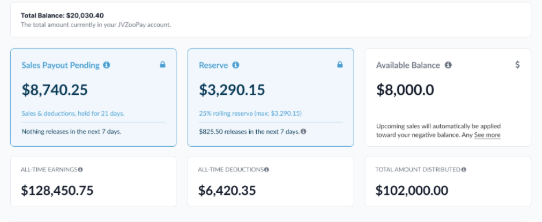
Sales land in your JVZooPay balance. One dashboard shows what’s pending, what’s in reserve, what’s ready to withdraw and your all-time earnings, deductions and payouts.1
Keep the processors you already use
You choose payment options product by product. Run your proven offers through JVZoo and keep PayPal or Stripe connected on everything else.
Side by side
| ON YOUR OWNRunning your own processor | WITH JVZOOJVZoo Processing Services | |
|---|---|---|
| Getting started | Apply to a processor and get approved | Apply once with JVZoo, then switch it on product by product |
| Processing | Runs through your own account | JVZoo processes the payments |
| Sales tax | You work out whether tax applies, then collect, report and pay it yourself | JVZoo works it out, collects it, reports it and pays it |
| If your account is restricted | Set up a new processor and ask every subscriber to update billing | Approved products keep running on JVZoo’s processing |
| Disputes | You answer each one after it lands | JVZoo can refund about 48 hours before a chargeback is reported |
| Cost of a dispute | Your processor’s chargeback fee | $23 prevention fee in place of the $49 chargeback fee, when JVZoo refunds early |
| Pay over time | Turn it on in your own Stripe or PayPal account, where available | Available through JVZoo’s processing network for approved products |
| Payouts | Tracked in each processor’s dashboard | Pending, reserve and available funds in one JVZooPay balance |
How to get set up
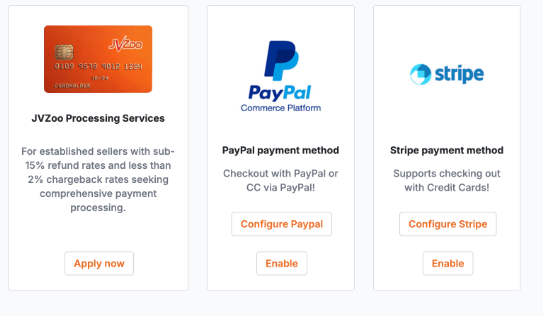
Processing Services is for established sellers with refund rates under 15% and chargeback rates under 2%. You apply from the same page where you connect PayPal or Stripe.
- 1
Apply. Go to
My Account → Payouts → Manage Profilesand choose Apply now on JVZoo Processing Services. Review and agree to the terms, then sign with the legal name on your account. - 2
Get approved. JVZoo Management reviews the application and emails you with the result.
- 3
Turn it on per product. In the Seller Dashboard, edit a product. Under
Payment Information, check I would like to apply to use JVZoo as the Processing Services for this product. - 4
Pass the product review. Each product gets a high-priority compliance review with a closer look at the sales page. The required JVZoo disclaimer must be on the page, or the product is denied.3
- 5
Start selling. Once approved, sales go to your JVZooPay balance. You withdraw according to your JVZooPay level.

Where your sales go
Processing Services sales land in your JVZooPay balance. The JVZooPay dashboard shows what’s pending, what’s held in reserve and what’s ready to withdraw, along with your all-time earnings, deductions and payouts.
Chargebacks get caught early
A chargeback costs $49 in processor fees whether you dispute it or not, and whether you win or lose.1 With Processing Services, JVZoo watches for disputes on the way.
About 48 hours before a chargeback is officially reported, JVZoo may refund the buyer first. You pay a $23 prevention fee instead of the $49 chargeback fee, and the dispute never lands on your record.
What it costs
| ITEM | FEE | NOTES |
|---|---|---|
| Processing | 3.5% + $1 | Per sale. Not returned if the sale is refunded.2 |
| Chargeback prevention refund | $23 | Charged instead of the chargeback fee when JVZoo refunds early.1 |
| Chargeback | $49 | Processor fee, charged whether you dispute or win.1 |
| Pass-through costs | Varies | Such as cross-border charges and processor or card network fees.2 |
What JVZoo expects from you
- A compliant sales page with the required JVZoo disclaimer, clear and conspicuous and in the same size type as the rest of the page.3
- Real customer support. Buyers need to reach your help desk and get timely replies.
- Low refunds and chargebacks. You need refund rates under 15% and chargeback rates under 2% to apply. Higher rates later can mean higher processing fees or losing access.
With Processing Services, JVZoo may issue refunds without your consent, for example to head off a chargeback.1
Prefer your own processor?
That’s still an option. Connect PayPal or Stripe from the same Manage Profiles page and turn them on per product.
JVZoo Processing Services
One application with JVZoo. Payments, early chargeback refunds and payouts run through JVZoo and your JVZooPay balance.
Your own processor
Connect PayPal or Stripe. You manage the account, its approval and its disputes, and you keep the processor’s own pricing.
How sales tax works now
Who handles sales tax and VAT depends on how the sale is processed.7, 8
JVZoo handles it
JVZoo works out the tax using the buyer’s location and your product’s category, collects it at checkout, reports it and pays it to the right tax authority. It runs through JVZoo’s own Numeral account, so there’s no key to add.
You handle it
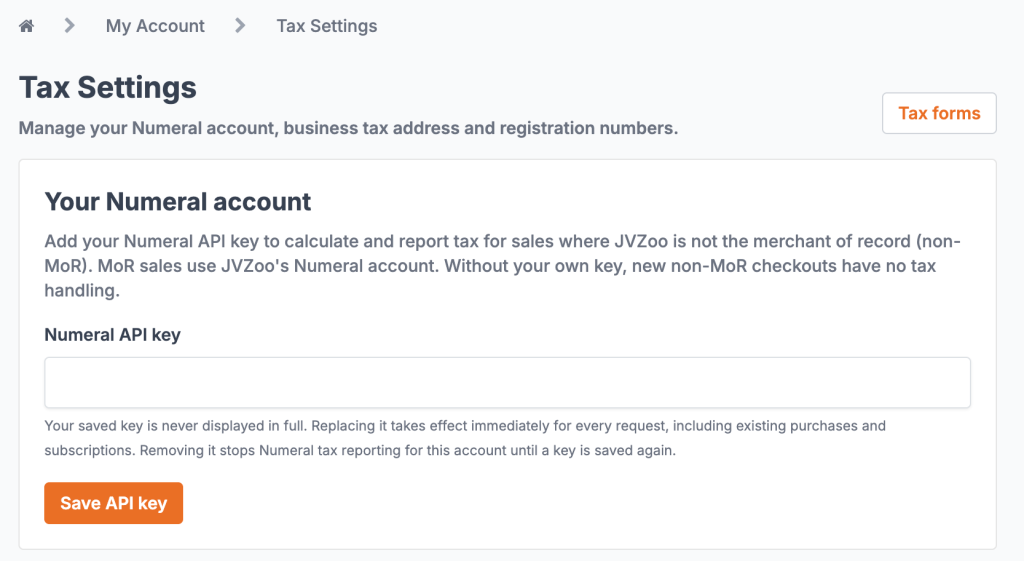
You decide whether tax applies, then collect, report and pay it yourself. To calculate tax on those sales, add your own Numeral API key in Tax Settings. Without it, new checkouts have no tax handling.
Add your tax address and tax IDs
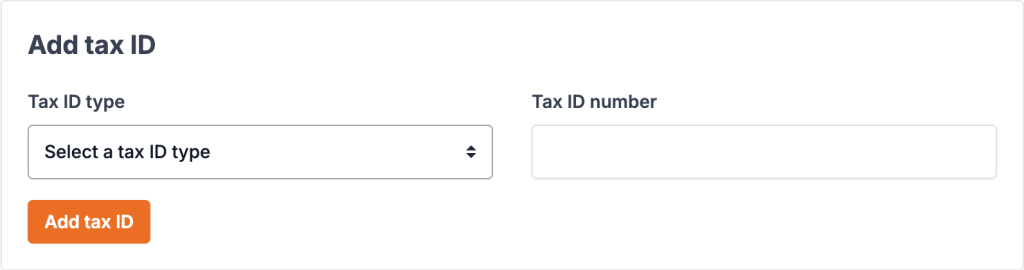
On the same page, enter the address where your business is registered for tax. JVZoo uses it with your legal name to identify your business for tax calculations. Then add a separate tax ID for each tax registration your business holds.5
Pick a tax category for each product
Tax depends on what you sell as well as where your buyer is. JVZoo uses each product’s Sales/VAT tax category, plus the customer’s location, to work out the right tax at checkout. Picking the category is the seller’s job, even on Processing Services.7
Set it on each product’s General Information tab, in the Tax Classification field. It’s a separate field from Category, which only decides where your product appears in the marketplace.
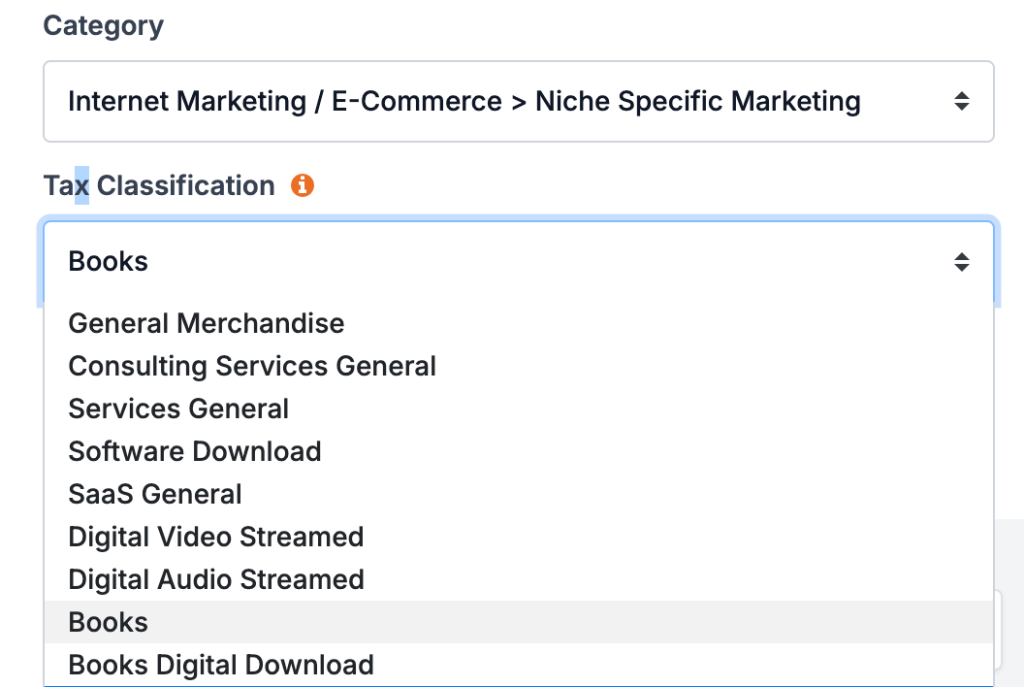
- General Merchandise
- Consulting Services General
- Services General
- Software Download
- SaaS General
- Digital Video Streamed
- Digital Audio Streamed
- Books
- Books Digital Download
- Clothing General
- Digital Newsletter
- Social Event In Person Business
- Supplements General
- Shipping
| IF YOU SELL… | CHOOSE |
|---|---|
| A streaming video course or membership | Digital Video Streamed |
| Software people use in a browser | SaaS General |
| Software people download and install | Software Download |
| An eBook, PDF guide or workbook | Books Digital Download |
| Done-for-you marketing or setup work | Services General |
| One-on-one strategy or consulting sessions | Consulting Services General |
| A paid email newsletter | Digital Newsletter |
Choose based on what the customer actually receives, not how the offer is marketed, and never because a category has a lower tax rate. For bundles, start with the main thing the customer is buying. If nothing fits, contact JVZoo Support.7, 8
Why buyers see different tax
Two customers can buy the same product and pay different tax. It depends on where each one is and how their jurisdiction treats that type of product.8
If a customer asks why they were charged tax, the answer is usually their location and the type of product. With Processing Services, JVZoo applies those rules for you.
Tax rules depend on where you and your buyers are, so check your obligations with a tax professional.
Your checklist
- Check that your refund rate is under 15% and your chargeback rate is under 2%, then apply under Payouts → Manage Profiles.
- Add the required JVZoo disclaimer to each product’s sales page before you submit it.
- Check the Processing Services box on each product under Payment Information.
- Make sure buyers can reach your support desk quickly.
- Set the Tax Classification on every product, on its General Information tab.
- Add your tax address and tax IDs under My Account → Tax Settings. If you also sell through your own processor, add your Numeral API key there.
Sources
- JVZoo Help Center, JVZoo Processing Services
- JVZoo Help Center, Refund Processing Fees on JVZoo Processing Services Transactions
- JVZoo Help Center, Required JVZoo Processing Services Disclaimer
- JVZoo Help Center, How To Notify Customers To Update Their Subscriptions
- JVZoo seller dashboard, My Account → Tax Settings (screen as of November 2026)
- JVZoo Help Center, Buy Now, Pay Later (BNPL) Options on JVZoo
- JVZoo Help Center, How to Categorize Your Products for Sales/VAT Tax Purposes
- JVZoo Help Center, Understanding Sales Tax and VAT on JVZoo Purchases
This post is general information, not tax or legal advice.
